Installing a Colour Trading App on Android

If you have decided to install rather than use the browser, the process has four moments where a decision is made — and three of them are easy to click past without reading.

Unknown sourcesPermission promptsFirst launchClean removal
The sequence

Six Steps, in Order

Written for a package from an official source. If the file arrived any other way, the first useful step is not installing it.

  1. Download from the store or the operator's domain. Typed or bookmarked, not reached through a search advert. This single choice removes most of what can go wrong later.

  2. If sideloading, enable unknown sources for that app only. Modern Android grants the permission per-app rather than system-wide. Grant it for the installer you are using and turn it off afterwards.

  3. Read the permission screen instead of tapping through. This is the moment the decision is actually made. Internet and storage are ordinary; accessibility, SMS and device-admin are not.

  4. Open the permission manager on first launch. Revoke anything not needed to draw a screen. Most apps continue working perfectly with a much shorter list than they requested.

  5. Turn off promotional notifications. Optional but worth it. Deposit reminders at odd hours are the most common complaint about these apps and take ten seconds to disable.

  6. Check battery and data use after a day. An app that transmits while closed is doing something other than showing a timer, and both figures are in ordinary Android settings.

The prompts

What Each One Actually Asks

Android phrases these carefully, and the phrasing is easy to skim past.

“Install unknown apps”

Permission for one installer — usually your browser or file manager — to place packages on the device. Grant it narrowly and revoke it after.

“Allow notifications”

Harmless in itself. In this category it is the channel used for deposit prompts and bonus reminders.

“Allow access to photos and media”

Reasonable only if the app has a genuine upload feature, such as verification documents. Otherwise decline.

“Display over other apps”

Rarely necessary. It permits drawing on top of other applications, including login screens.

“Accessibility”

Full read of everything on screen plus the ability to act for you. There is no version of a colour round that needs this.

“Device admin”

Deep control that also makes uninstalling harder. Treat any request as disqualifying.

Judging a live install

Four Signals Worth Acting On

All four are visible in the first day of use.

A permission request after install

Apps that ask for accessibility on second launch, once you are already invested, are following a familiar pattern.

Remove

Constant background data

Some sync is normal. Continuous transmission from a closed app is not, and the usage screen shows it plainly.

Watch

Notifications you cannot disable in-app

Android can silence them regardless, but an app that fights the setting is telling you what it optimises for.

Watch

A short permission list and quiet behaviour

Which is what most licensed operator apps in this category actually look like.

Fine

Almost every serious problem in this category is granted rather than exploited. The permission screen is the security boundary, and it is the one screen people skip.

Where the decision happens
Removing it

The Order That Works

Uninstalling first can leave granted permissions behind and, with a device-admin entry, may not work at all.

01

Revoke accessibility and overlay first

In the permission manager, before touching the app itself. This is the step that matters most and the one usually done last.

02

Disable any device-admin entry

Under security settings. A package with this active cannot be removed until it is switched off.

03

Uninstall through settings

Rather than by dragging the icon, which on some launchers only removes a shortcut.

04

Restart and check

If anything reappears after a reboot, something else installed it, and that is worth tracking down before doing anything else.

Never install while logged into banking

Not because the install can reach the banking app directly, but because accessibility access granted in that moment sees whatever is on screen next. Close financial apps, install, revoke what you do not need, and only then go back.

Why the Browser Keeps Coming Up

Because every step above exists to manage a risk that a browser tab does not create. A web build cannot request accessibility, cannot read messages, cannot survive being closed and cannot leave a device-admin entry behind. It runs the identical round on the same servers, which makes it the obvious default for anyone who is not playing daily.

The case for installing is real but narrow: a smoother experience on a poor connection, and faster loading if you open the app often. That case is worth the checklist; curiosity is not.

A Note on Older Android Versions

Devices on older releases grant storage access far more broadly than current ones, and unknown-sources permission is system-wide rather than per-app. Both make sideloading meaningfully riskier, and both are good reasons to stay in the browser on an older phone.

The full checklist for judging a package before this stage is on the download page, and every guide is on the home page.
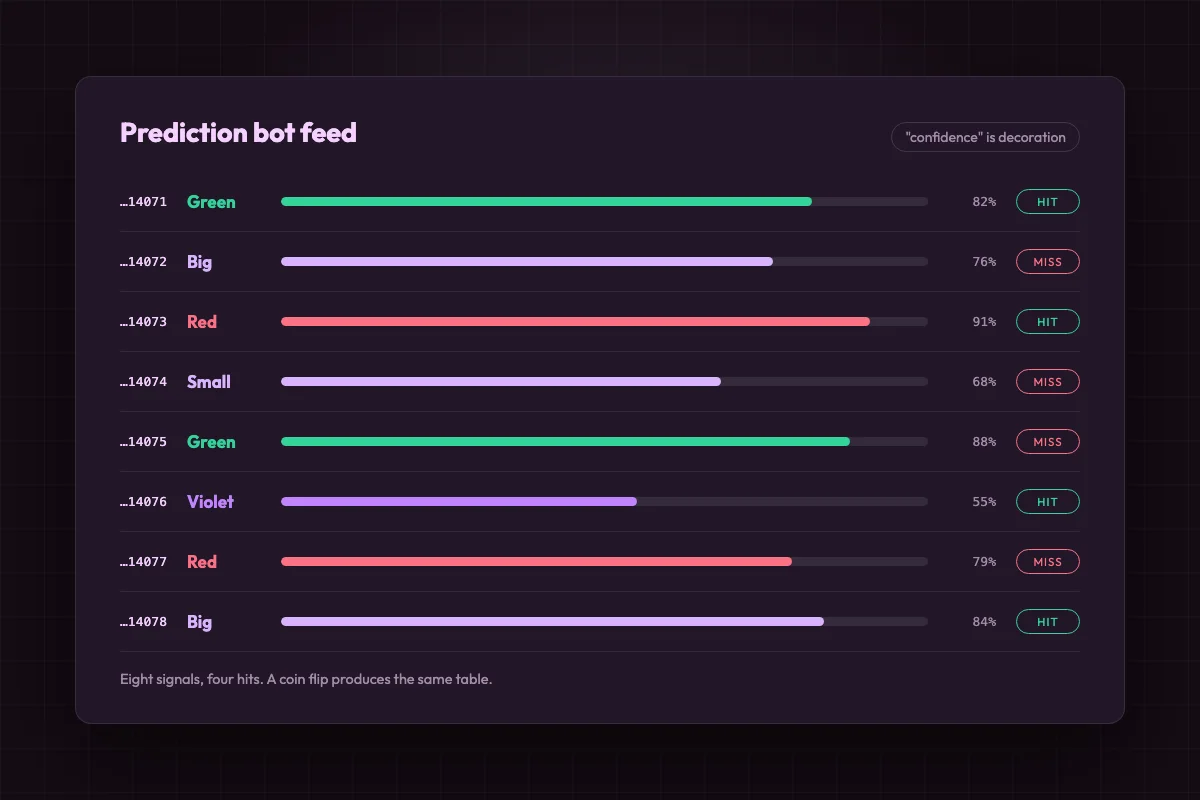
Prediction bot feed listing six signals with confidence bars and hit or miss labels beside them
FAQ

FAQ

Five questions about installing on Android.

It is a per-app permission on modern Android. Granting it to one installer briefly and revoking it afterwards is reasonable; leaving it on permanently is not.

Accessibility, SMS, call log and device admin, always. Overlay and broad media access unless the app has a clear reason. Internet and scoped storage are ordinary.

Yes, in the Android permission manager, and most apps keep working normally with a much shorter list than they asked for.

Something else on the device installed it. Check the app list for anything unfamiliar, particularly entries with generic system-sounding names.

No. Account and balance are held by the operator, so removing the package changes nothing except what is on your phone.

This website is for informational purposes only and is not a gambling operator: we do not accept bets or payments. 18+. Gambling involves risk and may lead to addiction — please gamble responsibly. Information (bonuses/terms/licenses) may change: check current rules on the operator’s website. We are not responsible for decisions and financial losses related to the use of third-party services.